
1) Open the On-premises program
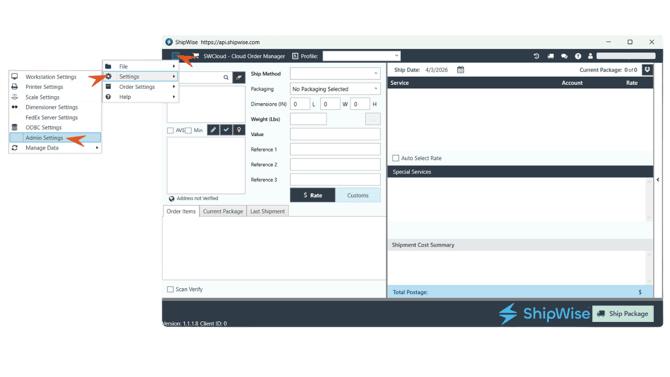
You must be logged in with an admin user. If you are not logged in with an admin user you will be prompted to log in with your admin user.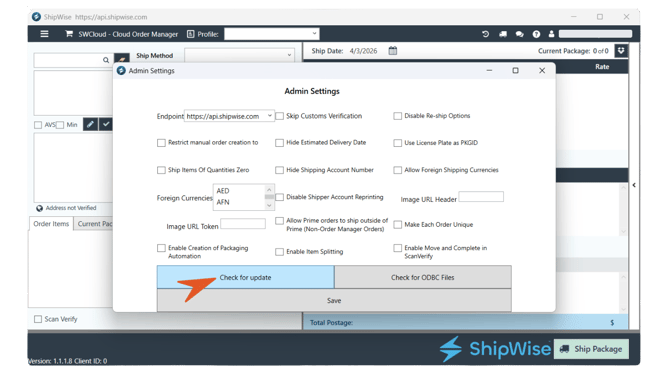
Once you select 'Check for update', the program will begin updating. You will then be prompted to log back into On-prem when it is complete.
If you are unable to update the software with the steps above, please use the steps below.
In the File Explorer copy and paste this pathway into the directory: C:\ProgramData\DSX
It should look like this:
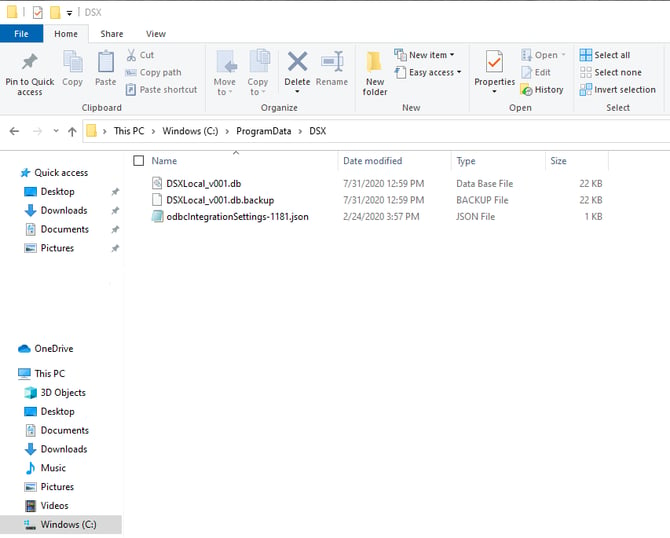
In this folder. You will need to add the update file.
Right-click and select New and then "New Text Document" as shown:
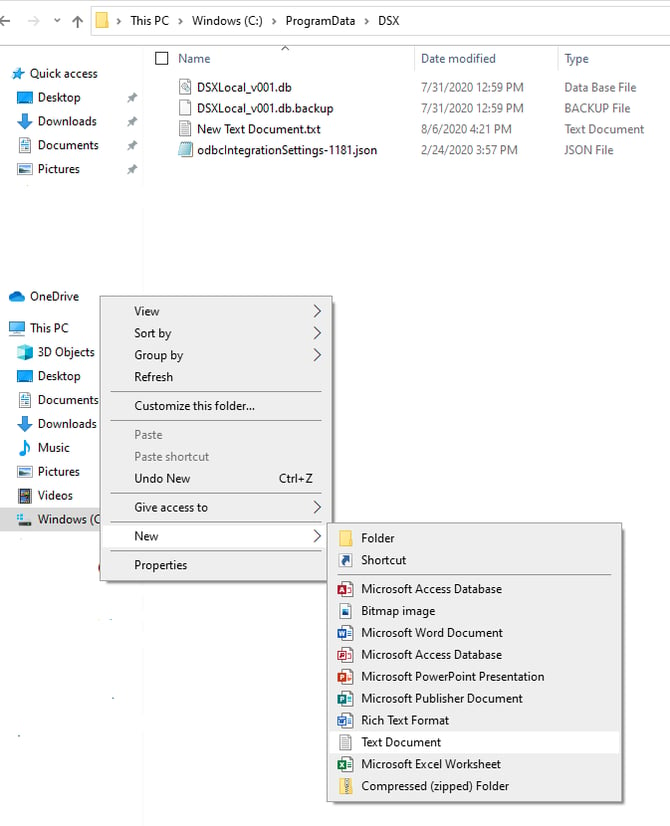
Rename the new file to 'update' and it will be a text document file, you can leave it empty. Only the name is important.
It should appear like this in the folder:

NOTE: .txt is the file type. If you have file extensions hidden, you just need to name the file UPDATE. You don't want to name it "UPDATE.txt.txt"
Once this is complete, try restarting On-prem from your normal desktop shortcut. The UPDATE.txt file will disappear from the folder and you will see a prompt at the bottom of your screen asking you to allow the system to make changes to your PC.
Allow the update to run. At the completion of the update process you should be able to log in normally to On-prem. The new version number will be shown in the lower left corner of the On-premises screen.