
Migrating from ShipV1?
ShipV1 (ship.desktopshipper.com) and all legacy DesktopShipper domains retire on July 10, 2026. After that date, any user who hasn't completed verification loses access to shipping, tracking, and reporting until an admin resolves it.
If your team hasn't finished moving to the ShipWise Web App yet, start with ShipV1 Retirement & Transition to ShipWise Web App (ShipV2) for the full migration steps. Come back here once you're ready to verify individual users or fix an account that's stuck.
How to Identify if a User is Verified:
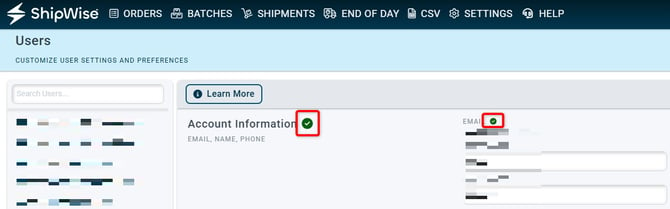
Go to Settings > Users and select the user email from the section on the left. Users who are fully verified will have two green checkmarks on their user profile next to "Account Information" and "Email":
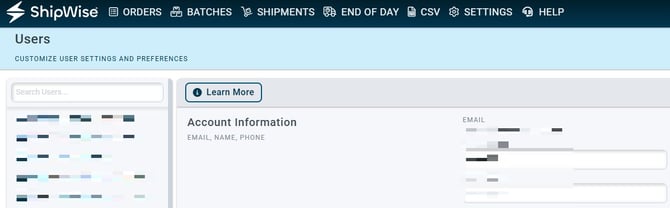
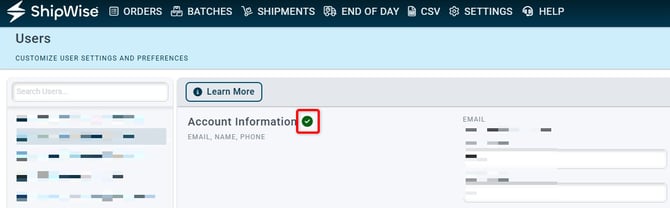
Users with unverified accounts will have either no checkmarks or only one:
Confirm an unverified Account:
Once a user has been identified as unverified, they can verify it using the instructions below:
- Go to app.shipwise.com login page.
- Attempt to login with user credentials. This should trigger a 'Confirm Account' prompt which asks for a 6-digit verification code.
- Within a few minutes, the user will receive an email with the 6-digit verification code. Enter that code on the confirmation screen. Note: The verification code expires after a short time. If it expires before you enter it, repeat the login process to request a new code.
Please note: User emails associated to accounts must be able to receive this verification code email. Fake or placeholder emails will not be allowed for user sign-in.
If logging in does not trigger the 'Confirm Account' prompt, proceed to the How to Troubleshoot ShipWise Account Verification Issues section below.
Once confirmed, the user will be able to log into ShipWise successfully and be fully verified! This can be confirmed in Settings > Users > User Page as outlined above.
Troubleshooting account verification:
If for some reason the above process does not work, the first troubleshooting recommendation would be to try to recover the account via the 'Forgot Password?' link.
If you encounter the following error in the lower left hand corner, first attempt to login via the main Login Page and if successful you will receive an email with the 6 digit verification code.

If that does not work, you will need to have an account admin delete and recreate the user.
To Delete a User:
- If they are a Viewer, Shipper, or Manager:
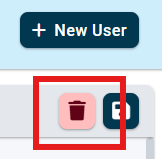
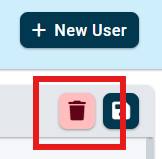
- Simply click on the red trash icon next to the save in the top right corner:
- Simply click on the red trash icon next to the save in the top right corner:
- If they are an Admin:
- First they need their role reduced to anything less than an admin (Viewer, Shipper, Manager):

- You can save and then remove that user with the same trash icon as above:
- First they need their role reduced to anything less than an admin (Viewer, Shipper, Manager):
After deleting the user, you can easily recreate it by clicking on "New User" and re-entering the user's information (name, email address, and role) and then saving via the save icon (floppy disk) in the top right corner:
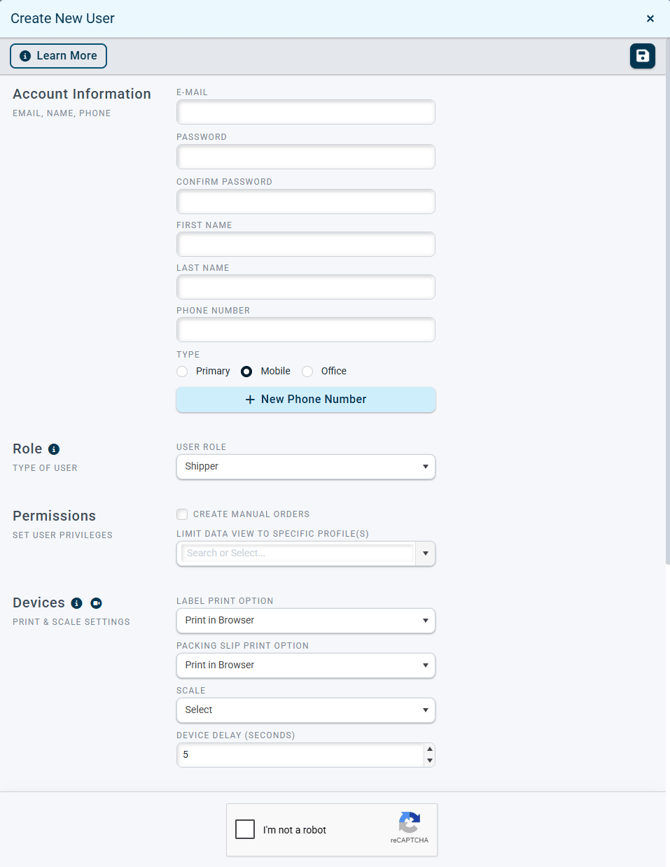
Once this user is created, the verification code will be sent to the email address associated with the new user account upon first login. Once that code is entered, the user will be fully verified. Confirm this by navigating to Settings > Users and checking that the user profile displays two green checkmarks.
Frequently Asked Questions
How do I know if a user needs to be verified? Check Settings > Users. A fully verified user has two green checkmarks on their profile. One checkmark or none means they still need to migrate.
I didn't get the 6-digit verification code email. What now? First check spam/junk. If it's still missing, try recovering the account through the "Forgot Password?" link on the login page. If that doesn't resolve it, an account admin will need to delete and recreate the user.
Can I delete an Admin's account directly? No. Reduce their role to Viewer, Shipper, or Manager first and save, then delete using the trash icon. Once deleted, recreate the user and they'll receive a new verification code on first login.