![logo_wordmark_dark-mode.png]](https://info.shipwise.com/hs-fs/hubfs/logo_wordmark_dark-mode.png?height=40&name=logo_wordmark_dark-mode.png)
What is a CSV?
CSV stands for "comma-separated values". It is used when exporting data from ShipWise's databases.
Why view a CSV file in a spreadsheet application?
To view CSV data, import the file into a spreadsheet application like Microsoft Excel for easier reading and organization.
- Open a blank MS Excel workbook.
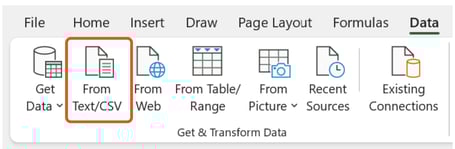
- Across the top menu, select the "Data" tab.

- In the upper left-hand corner, click "From Text/CSV". The file select window will open. Locate the CSV file that was exported. It is defaulted to the "Downloads" folder for Windows.
- A window showing some of the contents in the CSV file will open.
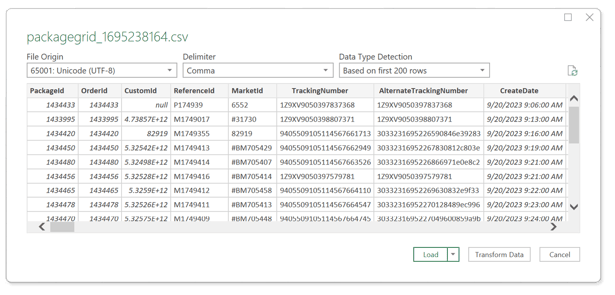
- Click the "Transform Data" button to modify the data types for the columns so that none of the data will appear as an exponential number. (ie. 5.324567E+12)
- Another pop-up window to import the file will appear.
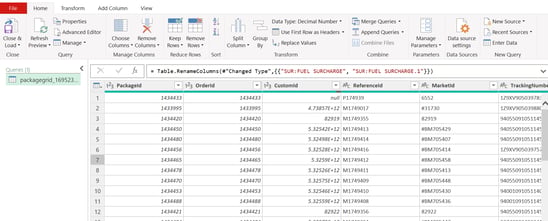
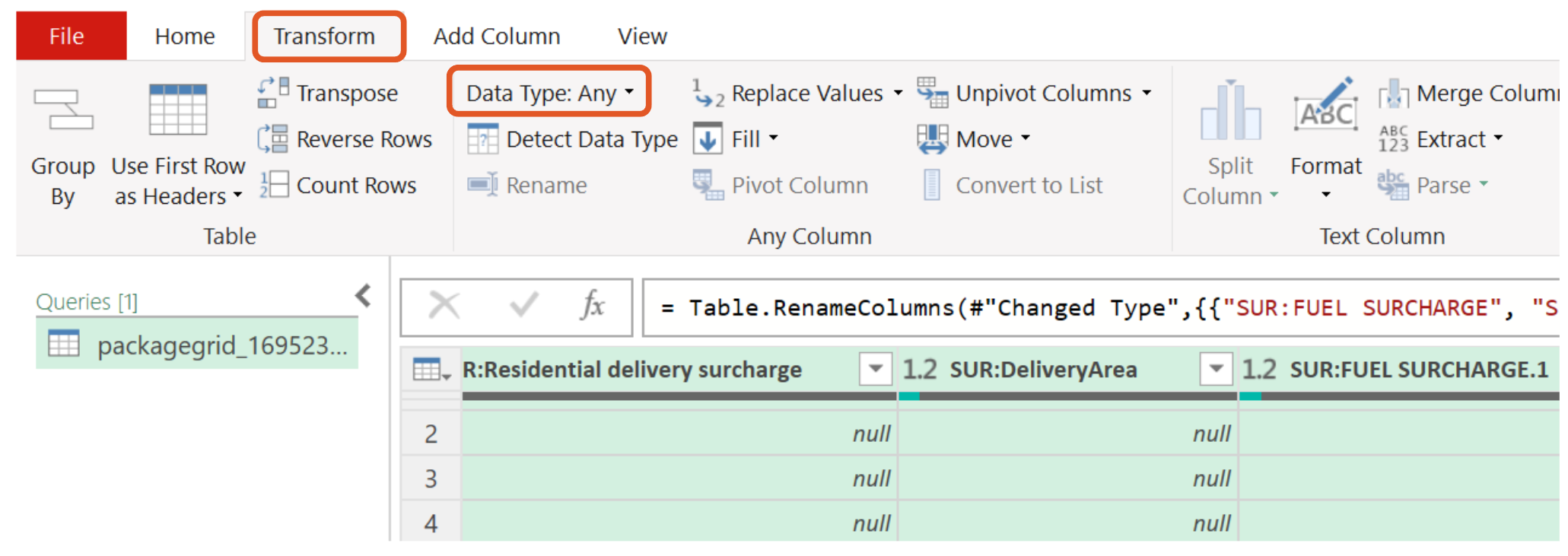
- Select all columns, change to the Transform tab, and choose "Data Type: Any" > "Text".
- On the Home tab click "Close and Load".
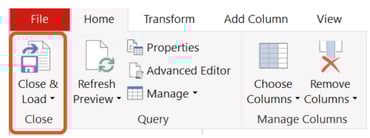
- This will bring up a spreadsheet of all the data in the CSV file.
Useful Links:
Data Export Fields (Shipments Page)
Data Export Fields (Batches Page)