
- Visit app.shipwise.com/ and navigate to Settings. Select "Carrier Accounts".
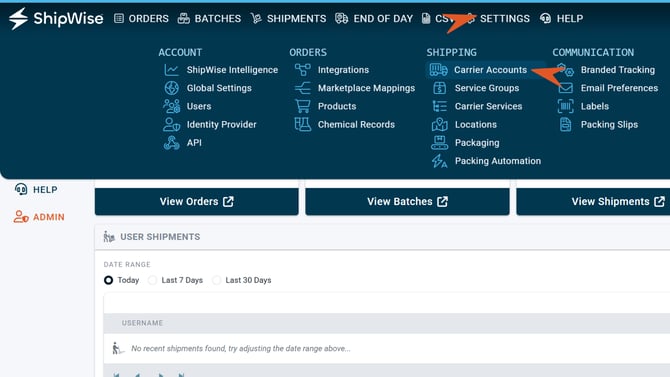
- Search or find FedEx account under list of Carrier Accounts or add a new Carrier Account.
-1.png?width=670&height=186&name=FedEx%20account%20(2)-1.png)
-1.png?width=458&height=377&name=FedEx%20account%20(1)-1.png)
Account setting options
-1.png?width=670&height=377&name=FedEx%20account%20(3)-1.png)
-
International Form settings: EEI and Commercial Invoice settings can be set here.
- Upload: Upload custom images. Required for ETD. Company letterhead and signature images can be uploaded here.
- ETD: Shortcut to the Knowledge Base article explaining FedEx Electronic Trade Documents (ETD) and how to set up.
- Onboard Account to FedEx Rest: To continue using FedEx normally in ShipWise, customers with existing FedEx integrations need to update their connection.
- Restrict Services: Access to carrier service filtering. This can enable specific carrier services only to work on selected profiles for this account.
- Add FedEx Reference Mapping: Set reference field values for your FedEx labels here.
- Account numbers: These fields will be populated by FedEx once the account have been validated by the onboarding process.
- Hub ID: The Hub ID must be populated for Ground Economy services to be used.
-1.png?width=670&height=377&name=FedEx%20account%20(4)-1.png)
- Drop off and Saturday Drop off Preferences: Add preferences here.
- External Rating only: Enable if the customer is still using a locally installed FedEx server (not common).
- Per Request Packages: When enabled, the system will treat each box of a multibox order as a separate shipment request.
- Authentication Key and Password: These fields will auto-populate once the account has been validated by FedEx during onboarding.
- Use Return Phone Number: When enabled, the system will use the profile's return address phone number as the Ship To phone number if none is present in the order data.
- Print INTL Terms: When enabled, any international documents will be sent to the designated report printer.
- Prefer ETD Submission: Enable ETD using this setting. When enabled, the system will submit Commercial invoice information electronically instead of generating a printed Commercial Invoice (only valid for participating countries).
- Display Published Rates: This setting will force the system to only display the published service rates instead of the negotiated rates on the account.
- No 2D barcode: This setting will disable the printing of the 2D barcode on the FedEx labels.
-1.png?width=670&height=377&name=FedEx%20account%20(5)-1.png)
- Third Party: This section will allow the user to add FedEx account information for Third Party billing of shipments. Valid Third Party account name and number is required.
More information
How to set up a new FedEx account
How to Migrate an Existing FedEx SOAP Account to FedEx's REST API